Getting found
How to get your business on Google Maps (and actually show up)
Getting on the map takes one afternoon. Showing up when someone nearby searches takes a few more steps. Here is the whole process for a local service business.
October 3, 20268 min readBy Plamen Bankov, Boomtown Sites
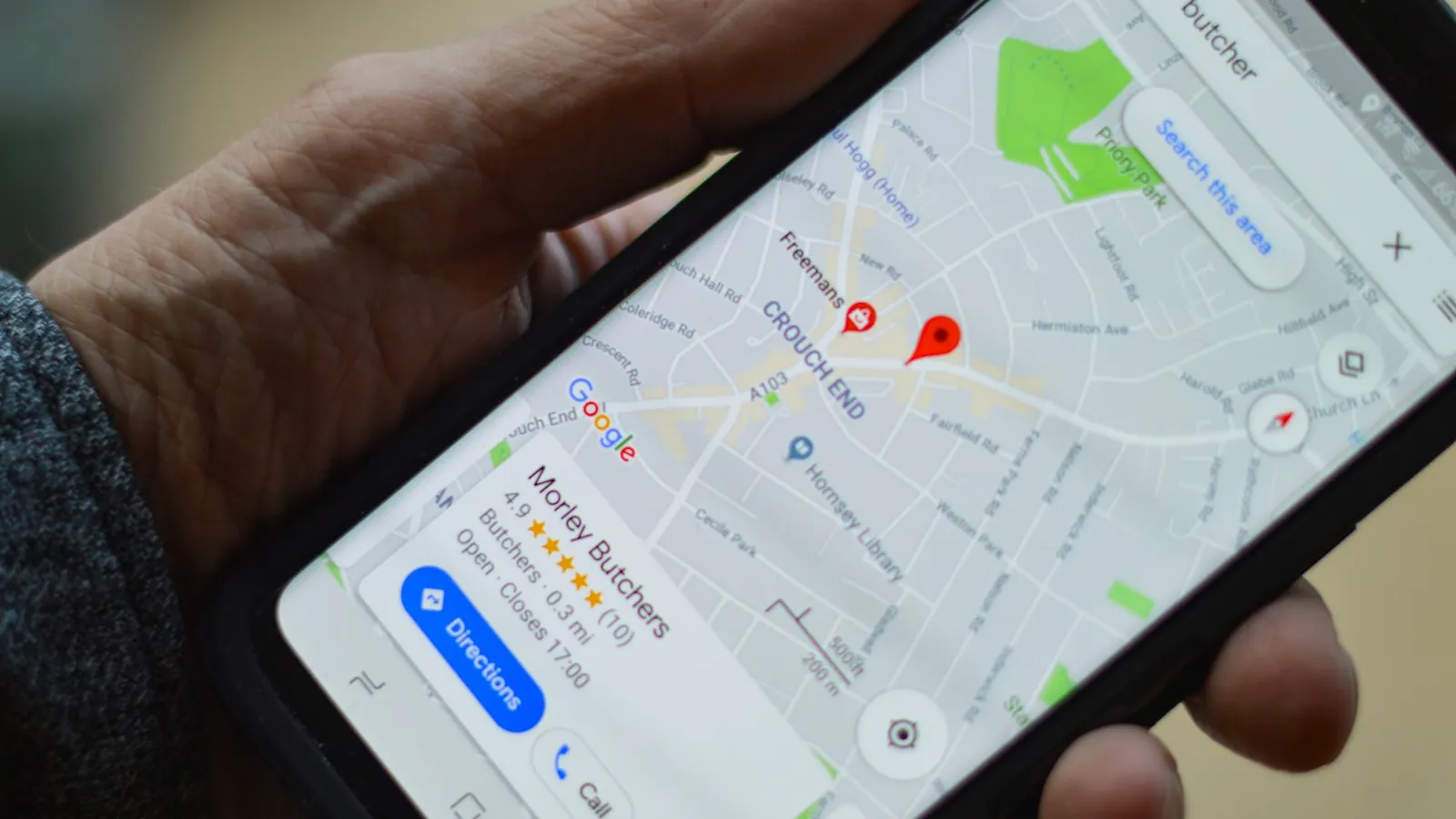
When someone searches "junk removal near me" or "fence company [town]", the first thing they see is usually not a list of websites. It is a map with three businesses pinned on it. Those three get most of the calls.
Getting your business onto that map is free. Getting it into those top three takes a bit more work. This guide covers both, in the order you should do them.
Step 1: Create or claim your Google Business Profile
Google Maps listings come from Google Business Profile. Go to google.com/business and sign in with the Google account you want to own the listing. Use an account you will keep for years, not a personal email a former employee set up.
Search for your business name first. If a listing already exists, someone (a customer, or Google itself) may have created it. Claim it instead of making a second one. Duplicate listings split your reviews and confuse Google.
Then fill in the basics:
- Business name: your real name, exactly as it appears on your truck, invoices and website. Do not add "Best" or city names to it.
- Category: the most specific one that fits your main service, for example "Junk removal service" or "Fence contractor". You can add more later.
- Location: if customers come to you, add your address. If you go to customers, choose a service area business and list the towns or counties you cover.
- Phone and website: a number you actually answer, and your website if you have one.
Step 2: Get verified
Your listing does not show properly on Maps until Google verifies it. This is the step where most business owners get stuck, so it is worth knowing what to expect.
Google picks the verification method for you. Depending on your business, you may be offered one or more of these:
- Video: you record a short, continuous video that shows your location or your work. For service businesses this usually means your branded vehicle, your tools or equipment and something that proves you run the business, like a business document or the inside of your shop.
- Phone or text: a code sent to the business number.
- Email: a code sent to an email address on your domain.
- Postcard: a code mailed to your address. This is less common than it used to be.
Tips that save time with video verification:
- Record in one take, without cuts. Edited videos get rejected.
- Show the street or the area first, then your vehicle or shop, then your equipment, then a document with the business name.
- Make sure the name on your truck or signage matches the name on your profile.
Review usually takes a few days. If it is rejected, read the reason, fix that one thing and try again. Do not create a new listing to get around it.
Step 3: Fill out every field
A verified but empty profile will show up for searches of your exact name and very little else. Google ranks the listings it understands best. Give it everything:
- Services: add each service you offer with a short, plain description.
- Secondary categories: for example a sealcoating company might add "Paving contractor" and "Asphalt contractor".
- Hours: real hours. If you take emergency calls, say so.
- Description: two or three sentences about what you do and where. Write it for a customer, not for Google.
- Photos: real job photos, your truck, your crew. Add new ones every couple of weeks. Stock photos do nothing for you.
How Google decides who shows up first
Google says local results are based on three things: relevance, distance and prominence. In plain terms:
- Relevance: does your profile clearly say you do what was searched? Categories and services matter most here.
- Distance: how close are you to the person searching? You cannot change this, which is why a crew 20 miles out will rarely show up in the next town over.
- Prominence: how well known and trusted is the business? Reviews, photos, your website and mentions around the web all feed into this.
You control relevance and prominence. That is where the rest of this guide focuses.
How to rank higher on Google Maps
Get reviews, steadily
Reviews are the single biggest thing most local businesses can improve. Not just the star rating, but how many you have and how recent they are. Ask every happy customer, right after the job, while they are still standing in front of the finished work. A text with a direct review link works better than asking them to "find us on Google".
Reply to every review, good or bad. A calm, short reply to a bad review often does more for you than the review does against you.
Link to a real website
A profile that links to a proper website with your services and towns listed gives Google a lot more to work with than one that links to a Facebook page or nothing at all. Ideally each main service has its own page, and the page names the towns you serve. We cover this in more detail in Google Business Profile and your website.
Keep your name, address and phone the same everywhere
Your business name and phone number should be written the same way on your profile, your website, Facebook, Yelp, the BBB and any directory. An old number on one site or a different spelling on another makes Google less sure which version is right.
Post and add photos regularly
Google Business Profile lets you publish short updates. A finished job with two photos and one sentence is enough. Regular activity shows the business is alive, and the photos help customers decide.
Answer the phone
It sounds obvious, but customers can call straight from the map. Missed calls turn into calls to the next pin. If you cannot pick up on the job, make sure voicemail or a text back tells people when you will call.
What gets profiles suspended
A suspended profile disappears from Maps, sometimes overnight. The most common reasons are avoidable:
- Keywords in the business name, like "Smith Plumbing Best Plumber Dallas".
- A virtual office or PO box used as the address.
- Showing a home address when you are a service area business that does not receive customers there.
- More than one profile for the same business.
- Big edits all at once, like changing the name, address and category on the same day.
If it happens, do not create a new listing. Fix whatever broke the guidelines, then file an appeal through Google's Business Profile support pages, with proof that the business is real, such as a business license, utility bill or photos of your vehicle with the name on it.
Why your profile might still not show
- It is not verified yet, or verification is pending review.
- You are searching from too far away. Try searching from inside the area you serve, or use "[service] in [town]".
- The category is too broad, like "Contractor" instead of "Concrete contractor".
- Competitors simply have more reviews and a better website. That is fixable, just not overnight.
The short version
- Claim or create your Google Business Profile with your real name and service area.
- Verify it, usually with a short one take video.
- Fill every field, add real photos and list each service.
- Link it to a real website that names your services and towns.
- Ask every happy customer for a review, and keep posting.
If you would rather have the website and the profile set up together so they match from day one, that is exactly what our Website + Google Profile plan does.
Frequently asked questions
How do I get my business on Google Maps?
Create a free Google Business Profile, add your name, category, phone and service area, and verify it. Once it is verified, your business can appear on Maps and in local search results.
Why is my business not showing up on Google Maps?
The usual reasons are an unverified profile, the wrong primary category, a missing service area or very few reviews. A profile that is complete and active shows up more often.
Do I need a physical address to be on Google Maps?
You need a real address to verify, but service area businesses can hide it and show the towns they cover instead.